Creators
You have a strong portrait but need a short social clip with a clear moment of movement.
A single expression or head turn can make the image feel more present without rebuilding the scene. See the related workflow in face swap photoai free.
Photo to video
An ai face generator from photo to video turns a still portrait into a short moving scene by preserving the subject while adding expression, timing, and camera direction.
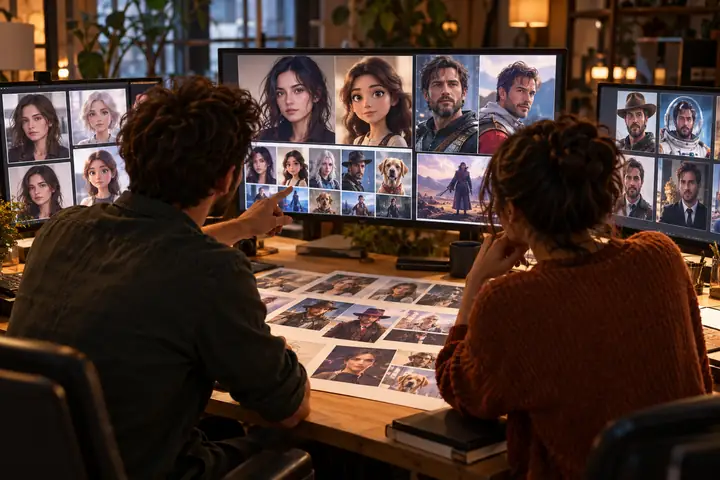
This format starts with a single face image and ends with a time-based result. The key change is motion, not a new identity or a completely different subject.
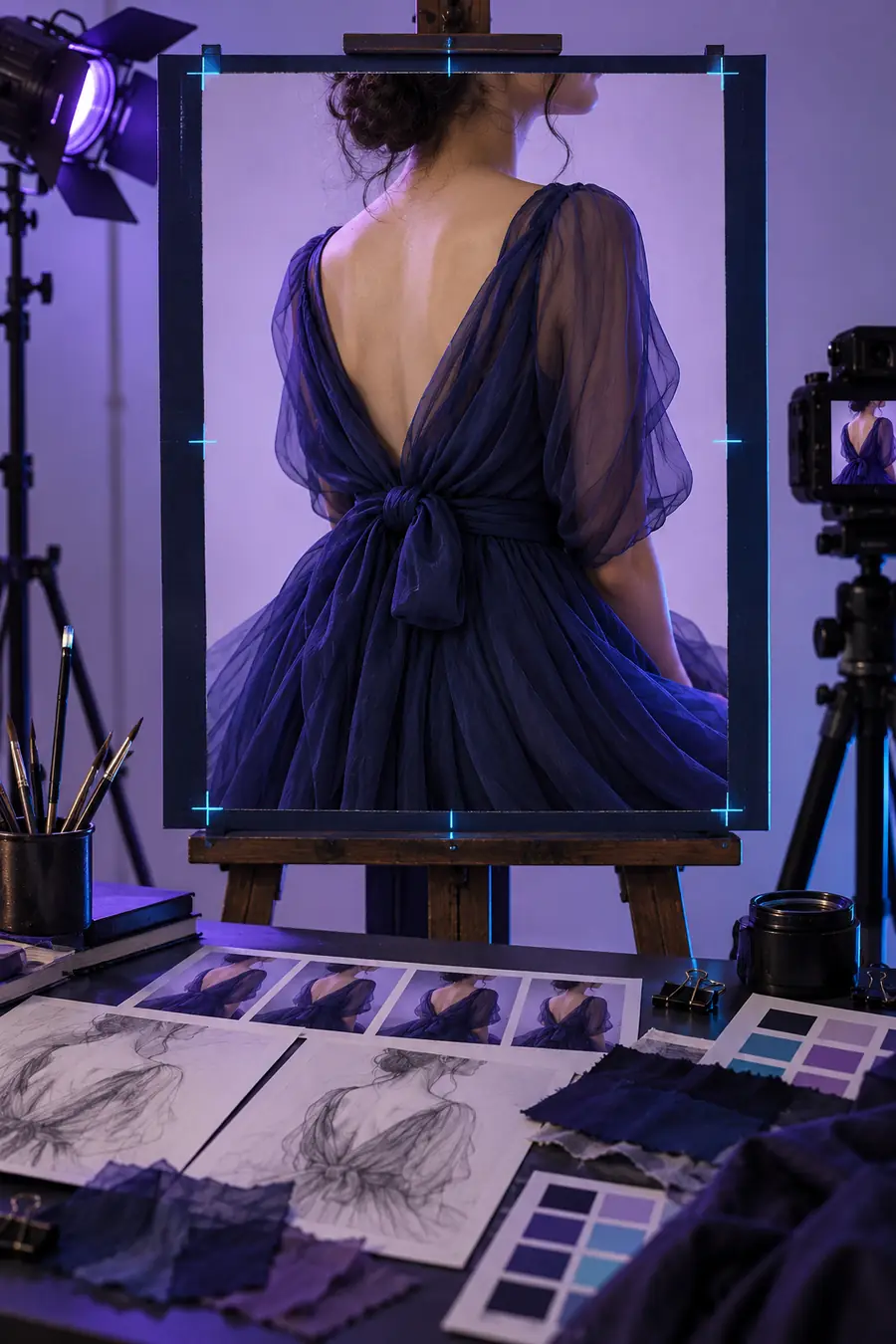
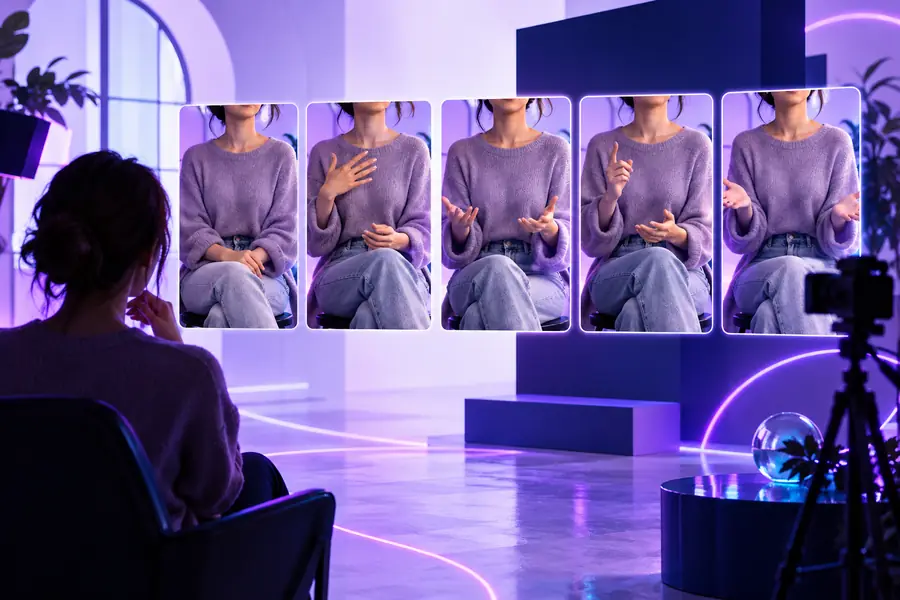
Photo input
Drag the divider to compare the still source with the moving result.
Video output
A still image gives the workflow a stable visual anchor. The best results then add one restrained action, making the output easier to direct and review.
You have a strong portrait but need a short social clip with a clear moment of movement.
A single expression or head turn can make the image feel more present without rebuilding the scene. See the related workflow in face swap photoai free.
You need a visual insert from an existing face image rather than a full live shoot.
A controlled photo-to-video pass can provide a transition, reaction, or establishing beat. Compare the broader motion use case in face swap video ai free.
You want to test how one approved portrait performs across a short campaign concept.
Working from the same source makes creative comparisons easier before committing to a larger production. The starting point is covered in ai face generator from photo.
You are checking whether facial motion remains coherent after export and playback.
A larger final frame makes edge, eye, and mouth artifacts easier to inspect. For a higher-resolution direction, see swap face ai video hd.
The two sides serve different jobs: the photo controls identity and composition, while the video introduces time, movement, and new failure points.
| Source photo | Generated video | |
|---|---|---|
| Primary role | Defines the face, framing, clothing, and lighting | Adds motion, timing, and visible expression |
| Time dimension | Single moment | Sequence of moments |
| Best input | Sharp, front-facing portrait with visible features | A source with enough detail to support the requested movement |
| Main review point | Identity clarity and facial visibility | Temporal consistency between frames |
| Typical direction | Describe the subject and starting pose | Describe one action, expression, or camera move |
| Common weakness | Blur, occlusion, or extreme angles | Flicker, warped features, or unnatural motion |
| Useful output check | Crop and face placement | Beginning, middle, and end of the clip |
| Editing role | Reference asset | Short insert, reaction, or concept scene |
Use short prompts that name one subject, one movement, and one visual condition. These examples show how a still portrait can become a directed clip.
Animate this portrait with a gentle smile and a slow turn toward the camera, keeping the face consistent.
 Expression
result
Expression
result
Give this portrait a calm speaking gesture with natural blinking and a slight forward camera push.
 Performance
result
Performance
result
Turn this face image into a short cinematic reveal with a slow head turn and soft window light.
Cinematic
result
Adapt one variable at a time: expression, head movement, camera direction, or lighting.
Use the slider to estimate how many frames a clip contains at a standard 24-frame-per-second playback rate.
frames
seconds
Photo-to-video is useful for directed motion, but it is not a replacement for every kind of filmed performance or animation pipeline.
If the source portrait hides an eye, mouth, hand, or hairstyle, the generated motion may guess at that area.
What to do instead
Use a well-lit image with the important facial features visible.
Fast turns, wide expressions, and strong lighting changes can produce drift between the original face and later frames.
What to do instead
Request restrained movement and review the beginning, middle, and end.
A portrait-led clip does not automatically provide reliable body movement, physical interaction, or complex camera choreography.
What to do instead
Keep the concept close to the source framing or move to a filmed plate for demanding scenes.
Compression, blur, heavy filters, and extreme crops remain difficult starting conditions for motion generation.
What to do instead
Prepare the cleanest, sharpest portrait available before generating.
Photo-to-video grew from simple image animation into a workflow where prompts describe motion, timing, and continuity together.
Early consumer tools focused on pans, zooms, and simple transitions applied over a static image.
Face tracking made expressions, masks, and lightweight overlays more responsive to a visible subject.
Social video workflows popularized animated portraits, face effects, and compact clips designed for quick sharing.
Generative systems began accepting natural-language direction for expression, head movement, lighting, and camera intent.
The practical workflow starts with a clean image, adds one clear motion idea, and checks continuity before wider use.
Bring a clear portrait and one motion idea into Face Ai, then review the result as a short video rather than judging a single frame. Start with a restrained prompt and refine only what the clip needs.
It is a workflow that uses a still face image as the visual starting point for a moving clip. The generated result may add expression, head movement, camera motion, or other directed changes while trying to preserve the source appearance.
A clear portrait with visible facial features is the strongest starting point. Blur, heavy compression, extreme angles, occlusion, and dramatic lighting can make motion less consistent.
Name the subject, one main action, and the visual condition you want to keep. For example, specify a gentle smile, a slow head turn, and steady soft lighting instead of asking for many unrelated changes at once.
It is designed to use the photo as the identity reference, but continuity can weaken during fast movement or large expression changes. Review several moments in the clip and reduce the motion if the face begins to drift.
No. Photo-to-video primarily adds time and motion to a source image, while face swapping replaces or maps a face into another image or video context. The workflows can overlap, but their inputs and creative goals are different.